


Lenovo and AMD join forces and introduce a series of ‘AI-proof’ servers
Lenovo is launching the ThinkSystem SR685a V3 8GPU server, which the company developed with chip manufacturer...
 10 hours ago
"*" indicates required fields
Lenovo is launching the ThinkSystem SR685a V3 8GPU server, which the company developed with chip manufacturer...
10 hours ago

Chromebook users can now use Microsoft 365 apps on their devices without having to open the browser without a...
12 hours ago

According to the security watchdogs of the United Kingdom, Canada and Australia, unknown state hackers have b...
13 hours ago

In the first financial quarter, ServiceNow posted revenue of $2.6 billion, or about €2.4 billion. Exactl...
14 hours ago

Atos likely needs more cash and additional debt reduction to stay afloat. The ailing French IT consultancy fi...
14 hours ago

Nvidia is to acquire Israeli startup Run:ai for $700 million. With this acquisition, the GPU maker hopes to s...
14 hours ago

Rubrik managed to sell its shares for a higher price than initially expected ahead of today's IPO. This will ...
16 hours ago

One in three applications contains a major or critical vulnerability. Outdated software, failure to install u...
17 hours ago

Canonical is releasing the latest LTS version of Ubuntu today. This release, version 24.04 (codenamed 'Noble ...
21 hours ago

Update 25/04/2024 - IBM has announced it is buying HashiCorp for $6.4 billion, equivalent to about €5.97 bi...
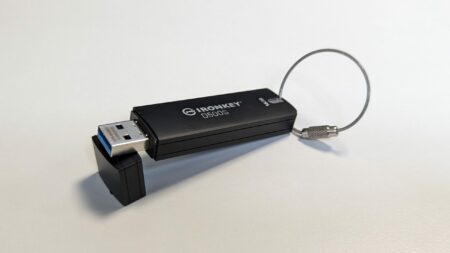
With the Ironkey D500S, Kingston provides important data with strong, validated protection. The uncluttered s...

What does a bug bounty program look like, and what does it deliver? We talk to Visma about its usefulness for...

Software application development is benefiting from AI-assisted testing at the ‘back end’ of enterprise I...

A week after it acquired Gem Security, Wiz is already aiming for its next target. Lacework, which once seemed...

Meta has announced Llama 3, the successor to the highly successful open-source model Llama 2. Along with the ...
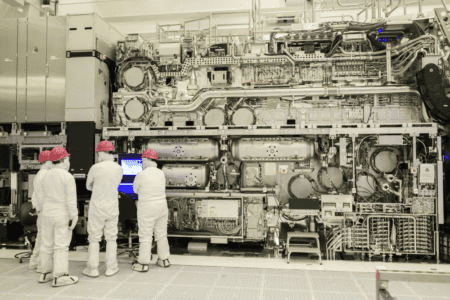
Intel has just announced that ASML's High-NA EUV machine has finished construction. For the first time, the s...

With "Operation PhishOFF," phishing gang LabHost appears to have exited the cybercrime stage. This criminal g...
According to Cisco, what we need is not so much new security products, but a completely new architecture to b...

AI models sometimes have an almost mythical status. You can do a lot with them, but building and deploying th...

Pulumi is releasing new Day 2 functionalities for Pulumi Deployments, a product focused on infrastructure dep...
1 day ago

French AI startup FlexAI will release its first solution later this year. It will allow AI developers 'as-a-s...
1 day ago

HP has just announced that it will become the title sponsor for Ferrari in Formula One. The HP logo will appe...
1 day ago

The cookie-free Chrome browser will not surface this year, Google reports. Phasing out so-called third-party ...
2 days ago

HPE Aruba has launched new HPE Aruba 700 Series WiFi 7 access points specifically suited for supporting AI an...
2 days ago

OpenAI announced new features for enterprise customers, focusing on improved security and expanding the Assis...
2 days ago

The U.S. Senate has passed a bill requiring the Chinese owner of TikTok, ByteDance, to sell the app to a U.S....
2 days ago